
The intention of this page is to get you set up with your town email account on a Apple computer using Apple’s Mail application. Apple has different security requirements than other applications, so the process is a bit more complicated. (What happened to Apple being easier to use than Windows, right?) This guide is written using an Apple computer. The steps for an iPhone will be largely the same but with a smaller screen.
First off, go to mail.monktonvt.com and sign in. Enter your email address. This is often your first initial and last name @ monktonvt.com.
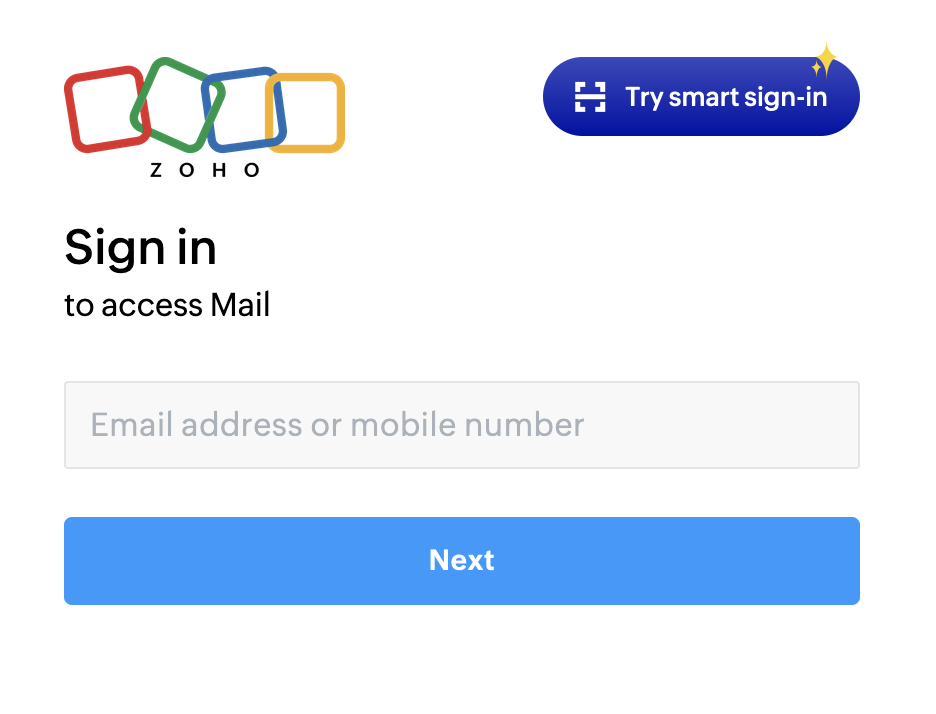
Enter the password you were provided. This is normally emailed to you when the account is set up.
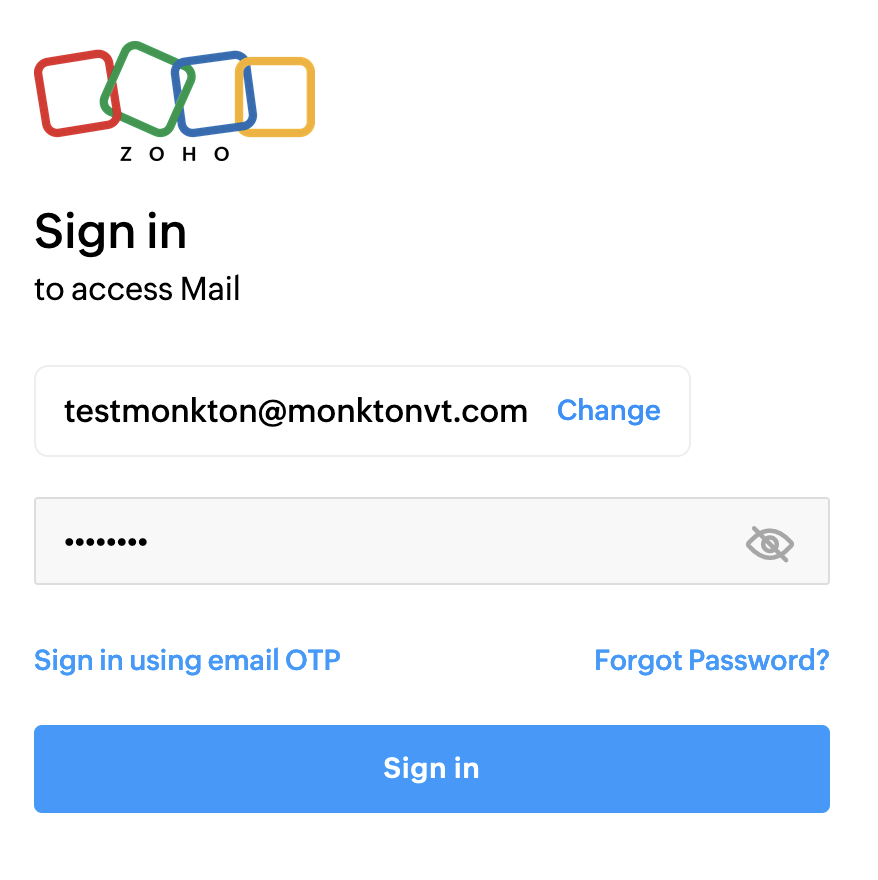
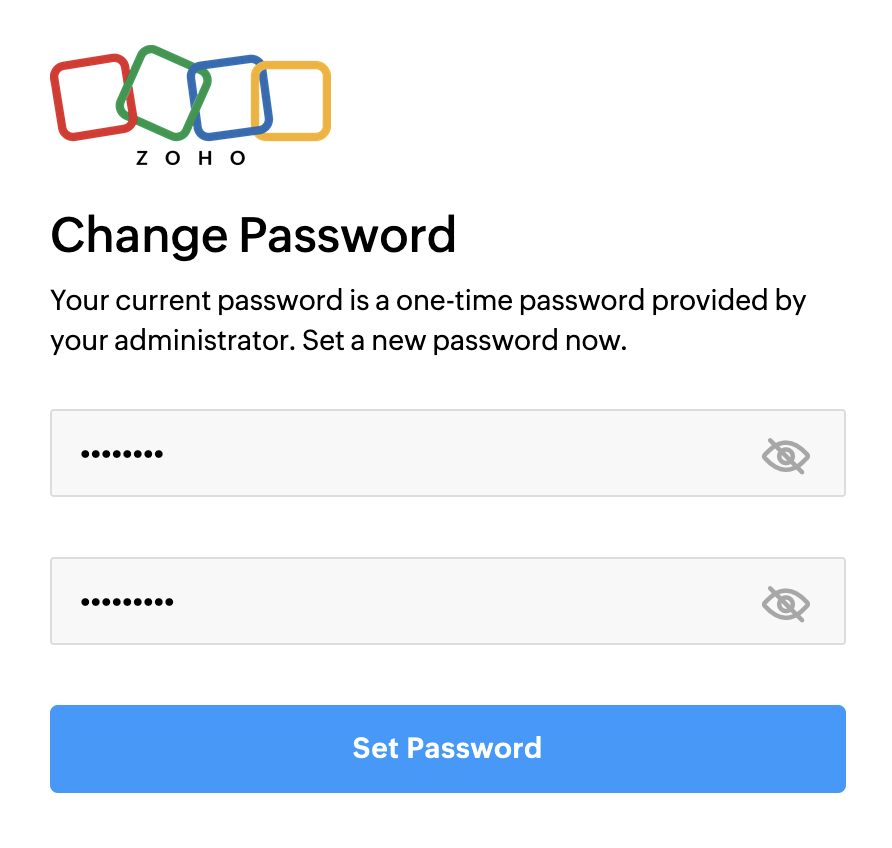
Since this is your first time logging in, you’ll be asked to change your password to something more personal that you will remember.
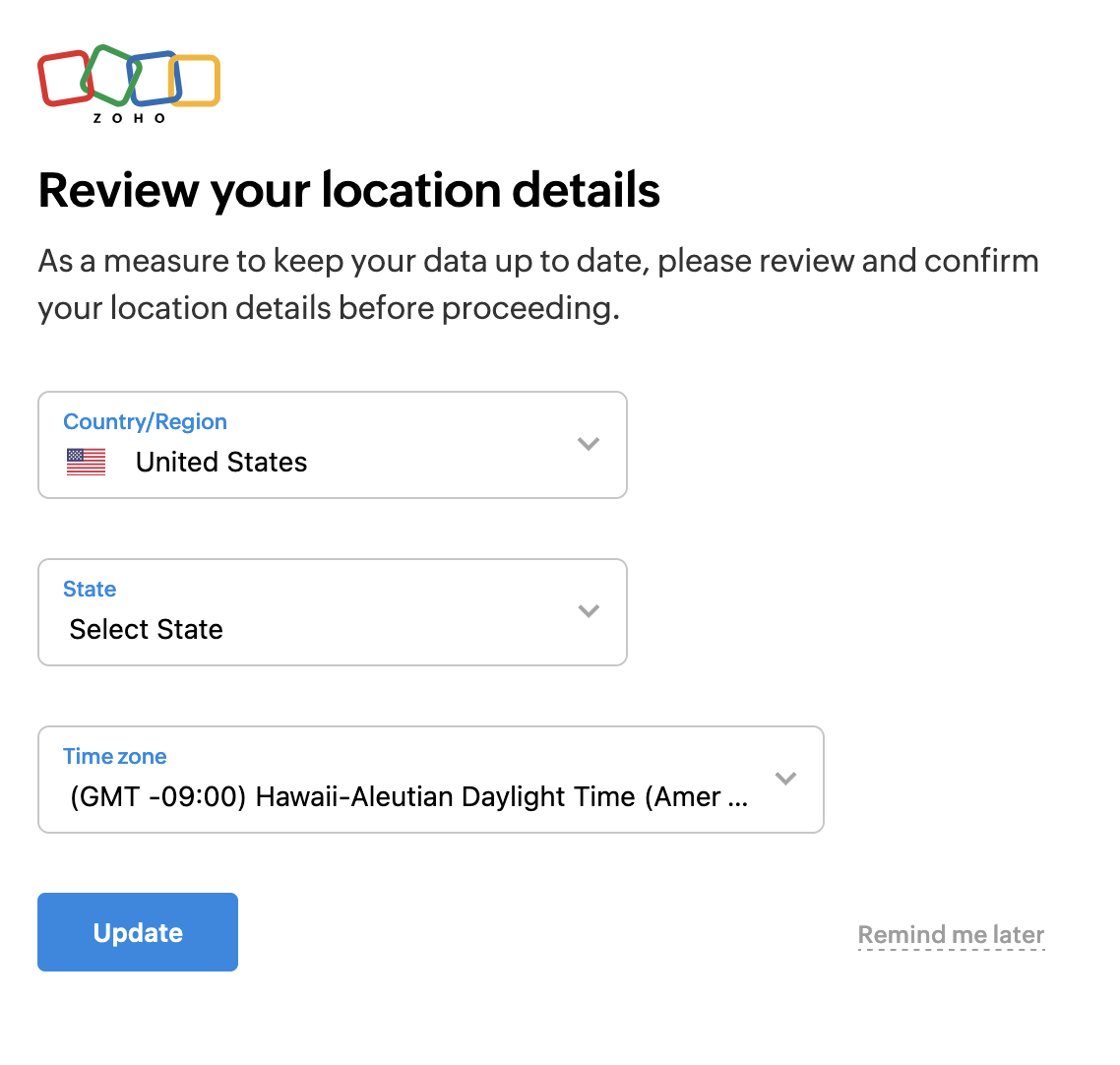
Review your location details. I hope you know where you live. (just kidding)
At this point, the next screen may suggest that you set up Multi Factor Authentication (MFA). If it suggests that now, skip it.
You should now be signed into your account with maybe a welcome email, etc. Leave the web browser open. We’ll be going back to it later.
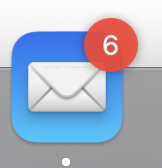
Now, let’s go to your mail client (that’s a fancy word for the program on your computer that you use to check your mail.). If it’s not already open, open it from the Applications menu. The icon will look something like this:
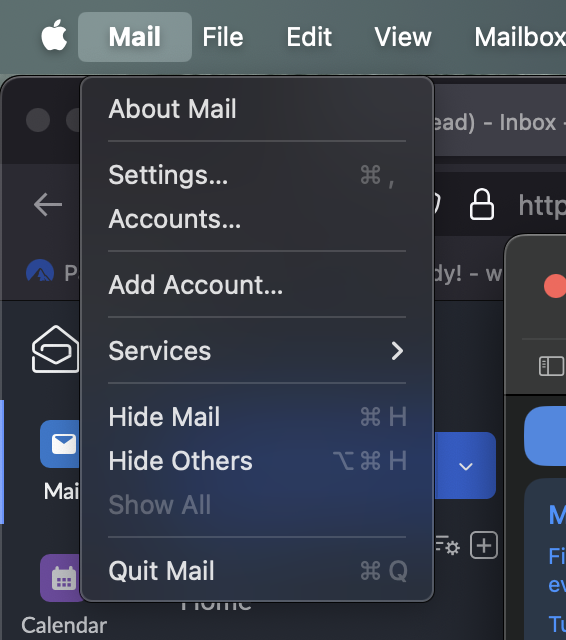
Once the client opens, click on the Mail menu and select Add Account…
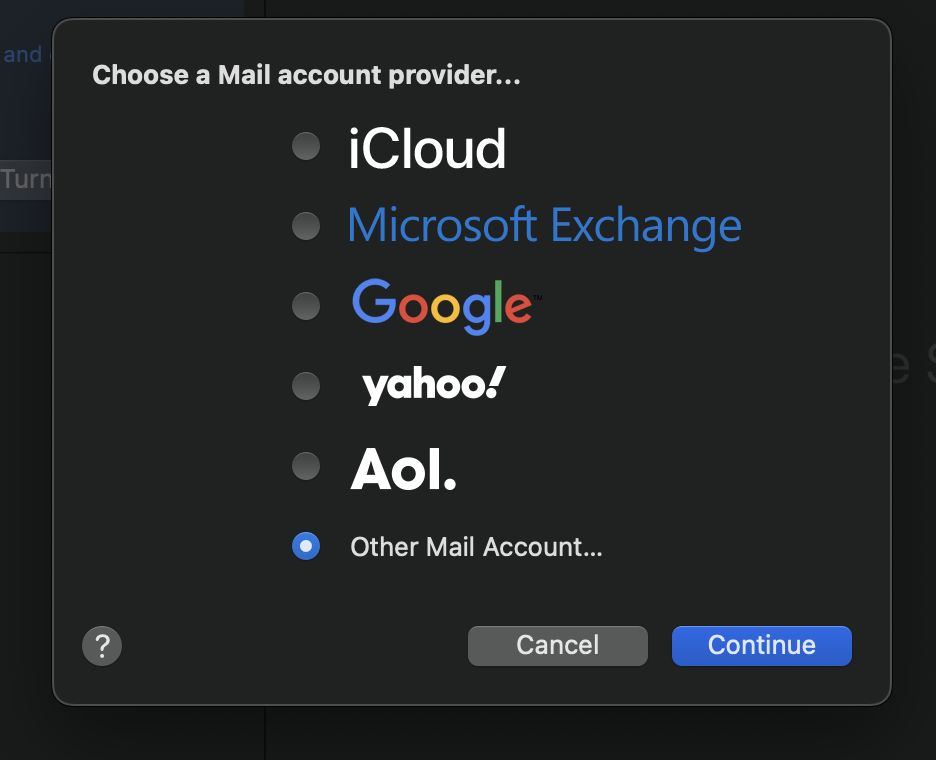
When asked if the new account is with iCloud, Gmail, etc, choose “Other Mail Account”.
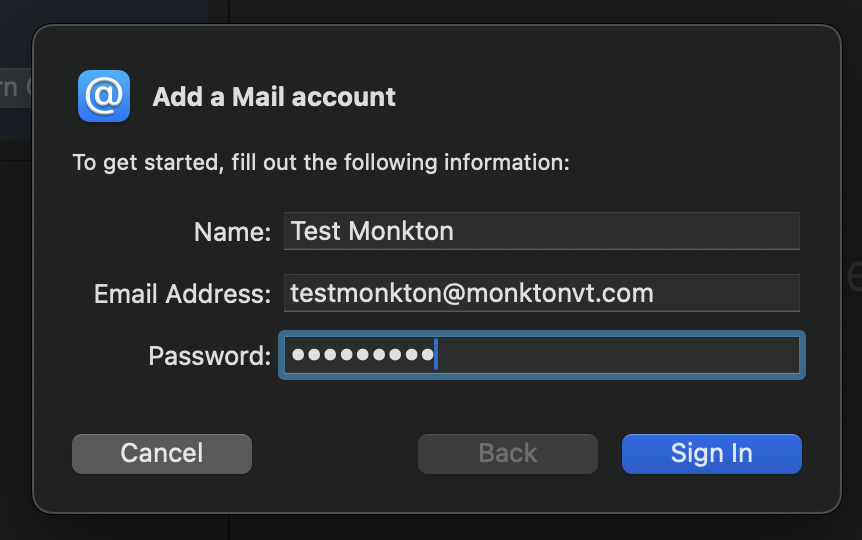
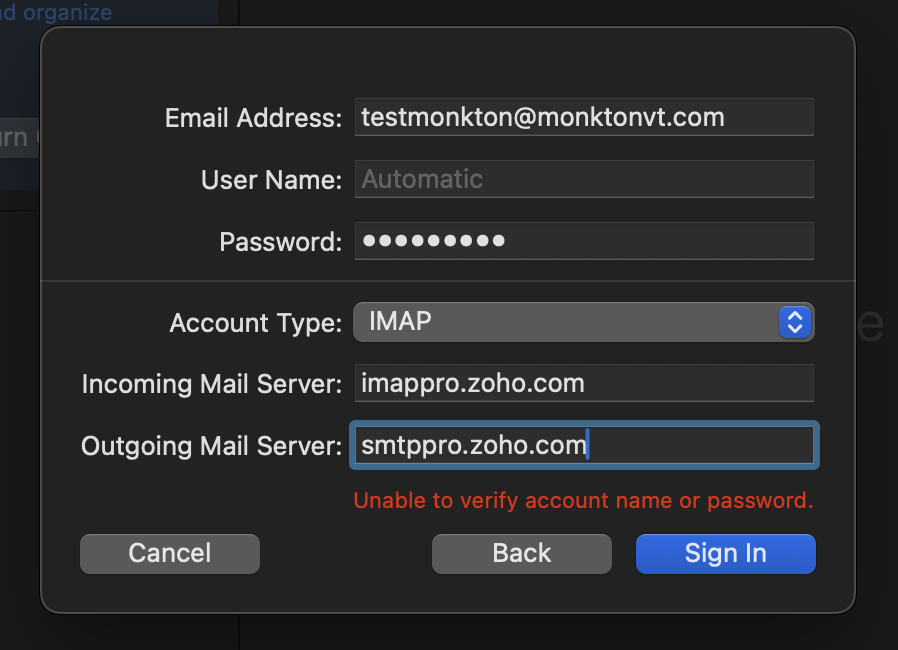
Put in your name, email address, and the password that you just set a few steps ago. Click Sign In.
The client should then ask you about the account type. Select IMAP. And then these two addresses for the Incoming and Outgoing mail. (I suggest copying and pasting the addresses)
- Incoming Mail Server: imappro.zoho.com
- Outgoing Mail Server: smtppro.zoho.com
Once you enter those addresses, click on Sign In.
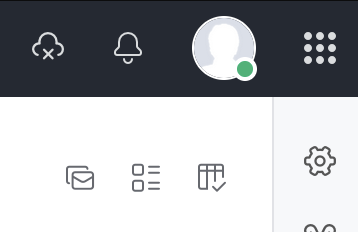
Now, let’s go back to your web browser where you went to mail.monktonvt.com earlier. In the top right corner, you’ll see the outline of a person’s head with a green dot. Click on that.
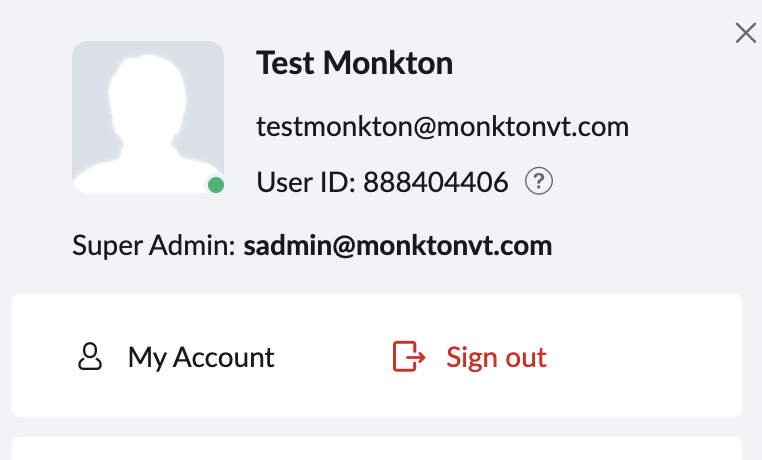
When the menu opens, click on My Account.
Once you’re in your account, on the left side of the page, you’ll see Multi-Factor Authentication. If you want to set up MFA, you can do that now but it’s not required.
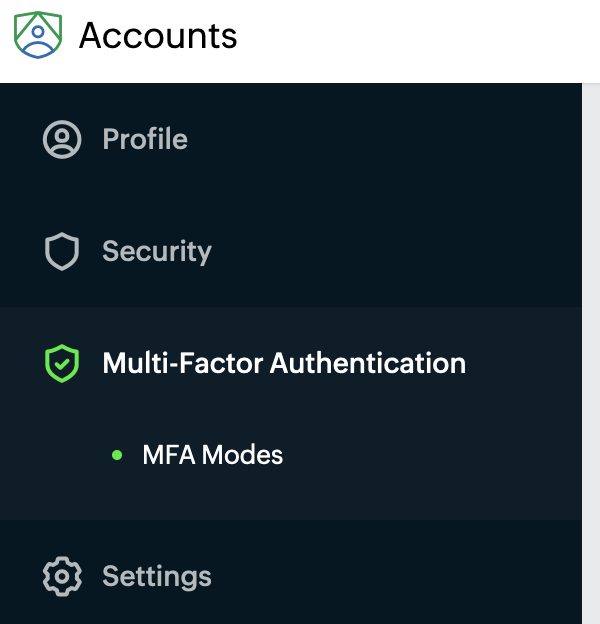
Above MFA, you’ll see the Security menu. Click that and then click on App Passwords.
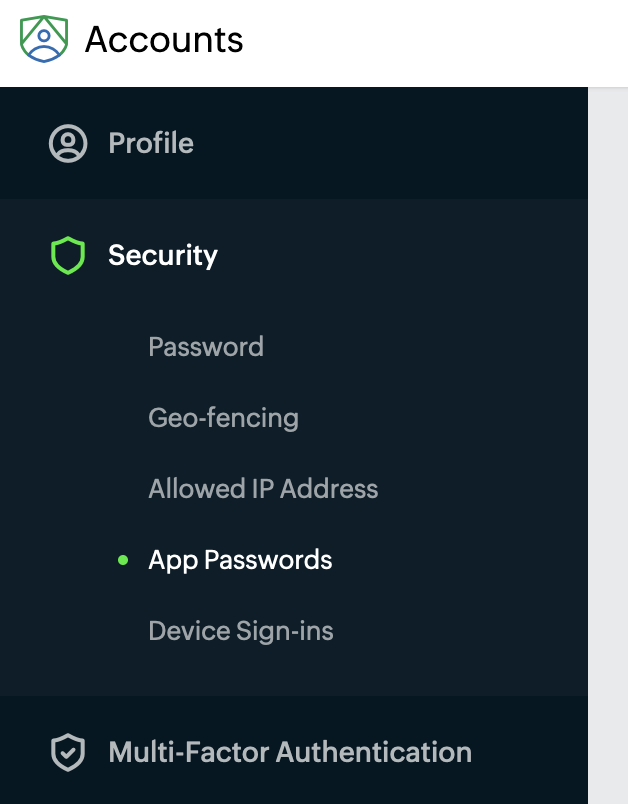
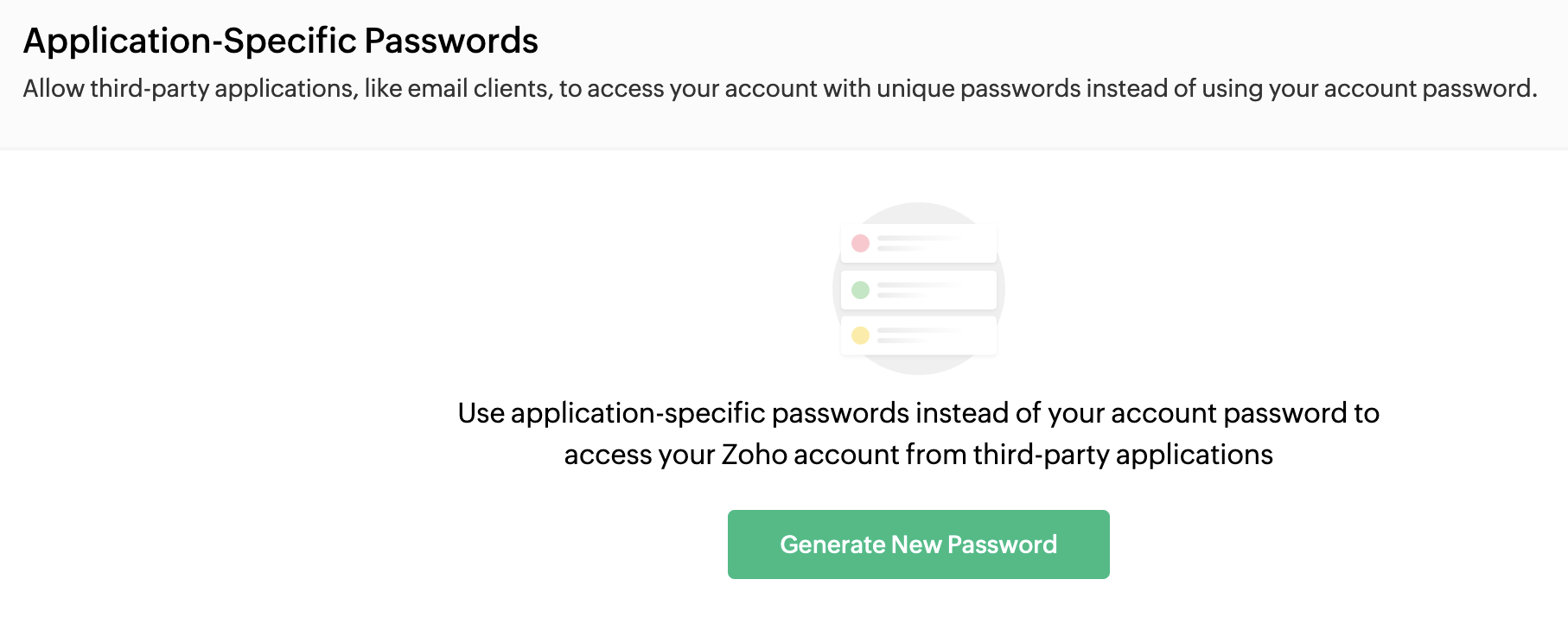
Scroll down until you see Application Specific Passwords. Click on Generate New Password.
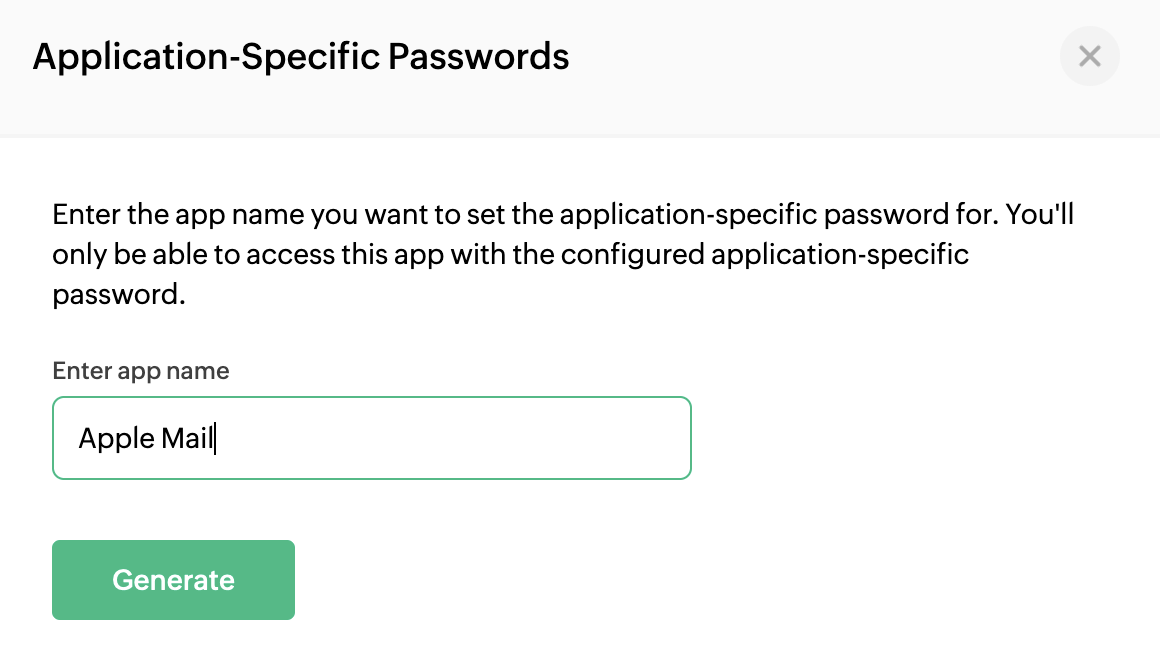
Name your new password. You don’t have to get fancy. Just “Apple Mail” will do fine. And click Generate.
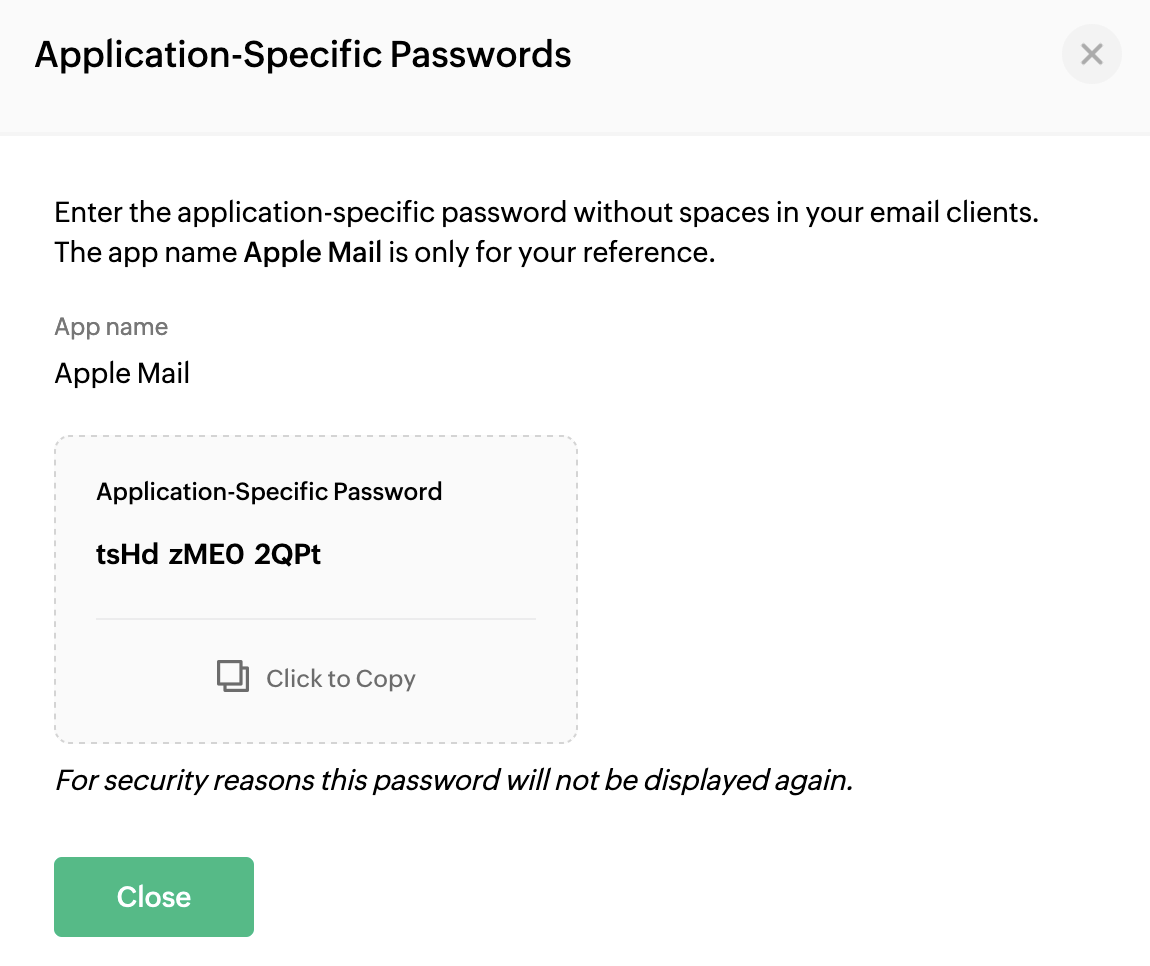
You should now see the App Specific Password. There’s a Click To Copy button below the password. I suggest clicking that instead of trying to highlight the password and copying. It’s just easier to click the button.
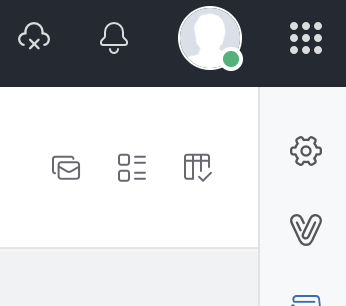
Now, let’s go back to your mail account at mail.monktonvt.com. Below and to the right of the green dot, you should see a gear icon. Click on the Gear icon to go to Settings.
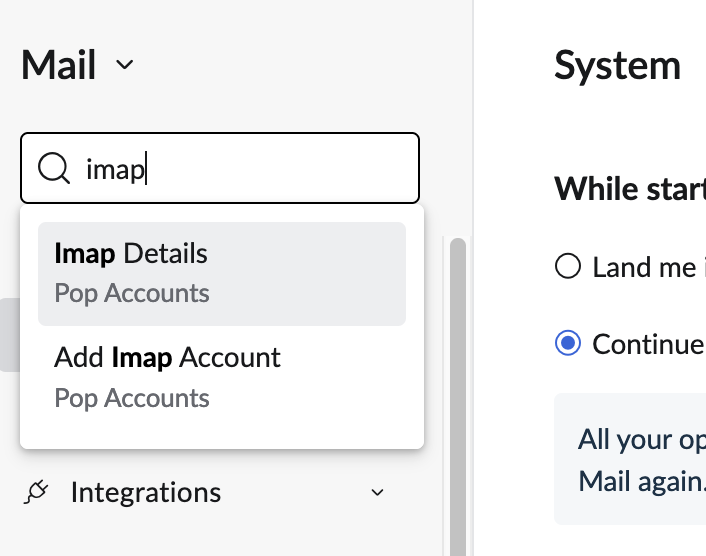
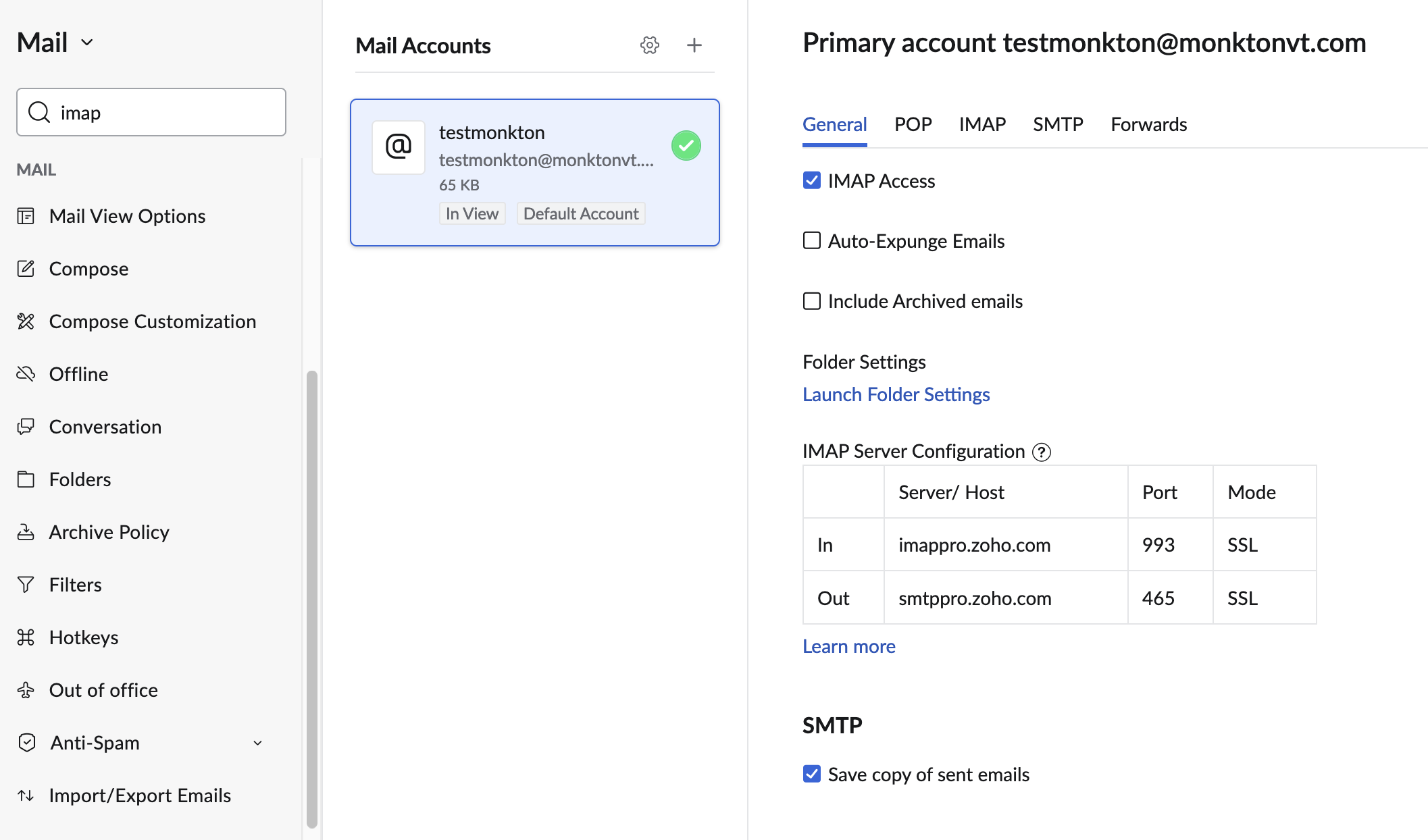
In the page that opens, you’ll see a search box at the top left corner. Search for “imap” and Click on Imap Details.
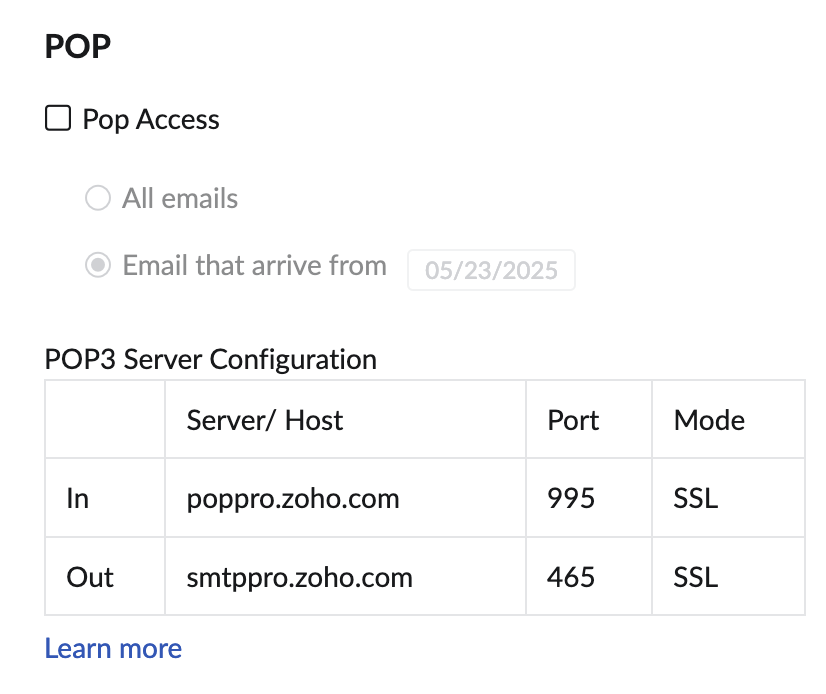
Go to the POP section and uncheck the POP Access checkbox.
Check the checkbox for IMAP Access.
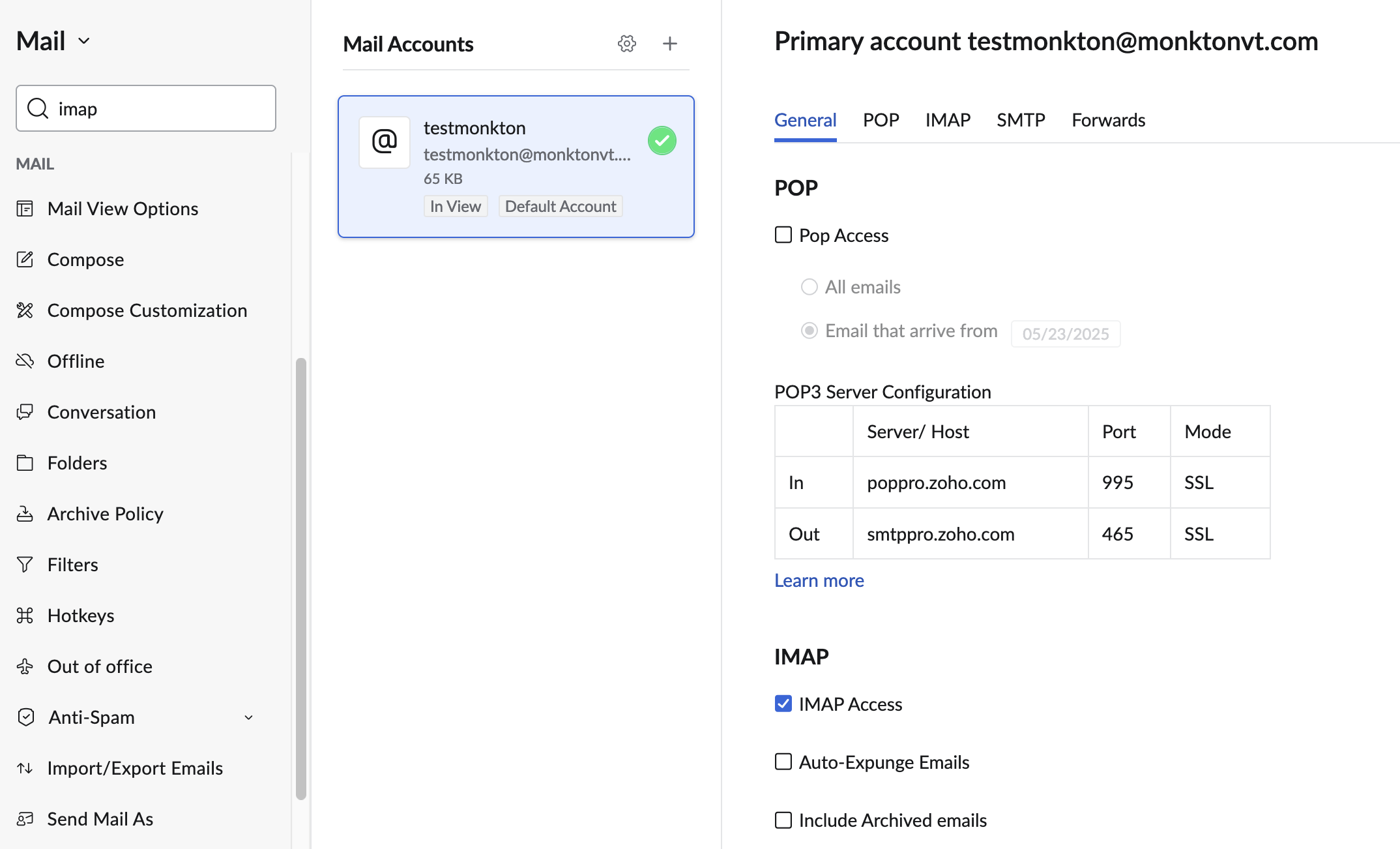
Leave all other settings alone.
That’s it. It’s a lot of steps but hopefully you followed step by step and it wasn’t too painful. If you have any questions at all, please, please email me at [email protected]. I don’t want anyone to feel like it’s a chore just to see your emails.